

OpenClaw (earlier Moltbot and even earlier Clawbot) got really popular a few weeks ago. Once I kept seeing it everywhere, I wanted to try it on my own day to day workflows.
What I liked first was the variety of channels OpenClaw supports. I can use it from Slack, WhatsApp, and Telegram. I just message it there, and it runs the task for me.
But that power is also where the risk starts. So, it is better to run OpenClaw in an isolated environment where it does not have direct access to your main machine.
I spent time using it on real day to day tasks and picked a few practical workflows that are worth sharing. I will start with the basics, then move into the workflows.
Here is what we will cover.
What is OpenClaw
Installation and Setup for Local, Docker, and Cloud
OpenClaw Workflow and Automation
How I fix GitHub issues from slack
How I use cron to check pull requests and spot the ones ready to merge
How I setup daily AI updates through WhatsApp
Adding Custom Skills to OpenClaw
OpenClaw Agent in Moltbook
1. What is OpenClaw
OpenClaw is an open-source personal AI assistant that runs on your own machine. You can talk to the AI assistant from chat apps such as WhatsApp, Telegram, Slack, Discord, and Teams.
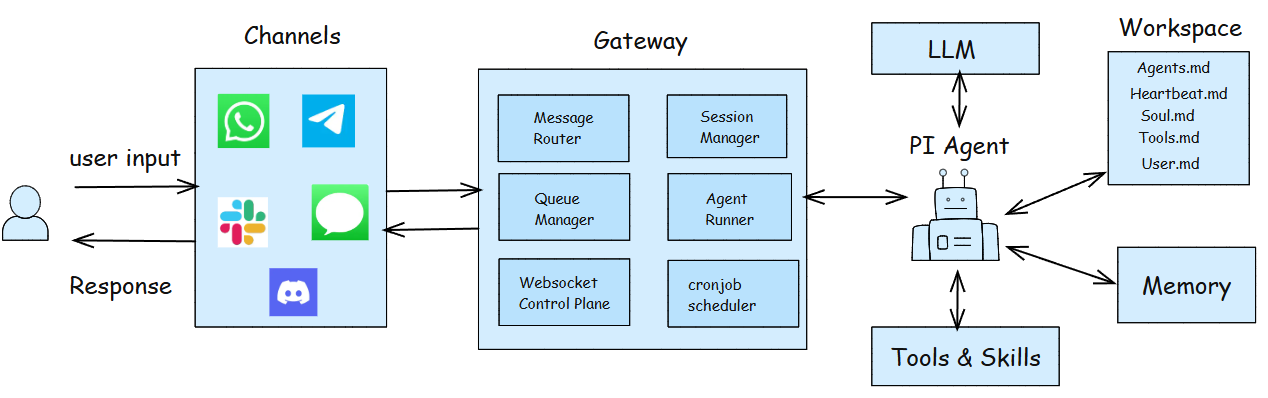
The diagram below shows how it works internally. What impressed me most is how clearly OpenClaw separates the agent from the rest of the system. The gateway, configuration, and lifecycle components are well organized. So, it becomes much easier to understand and debug when something goes wrong.
Gateway
Messages come in from channels like WhatsApp, Slack, or web chat. The gateway receives them and sends them to the right agent. It also keeps the session active and queues follow ups if a run is already happening.
Agent
The agent is the brain. OpenClaw builds the prompt and context, then passes your message to the agent. The agent decides the next step, uses tools if needed, and replies back.
Tools and Skills
Tools do the actual work. They can run shell commands, browse, call APIs, read files, or send messages. Skills are reusable workflows that tell the agent how to use those tools for a task.
Memory
Memory helps the agent remember. It stores project notes and past context so you do not have to repeat the same details every time.
This diagram shows how messages flow through OpenClaw from user input to agent reasoning and action.

2. Installation and Setup
Local Installation
Local setup is straightforward. Run this one-line command.
curl -fsSL https://openclaw.ai/install.sh | bashYou will then go through a short onboarding flow where you choose options based on your setup. It’s a simple process, and you can always configure channels and skills later.
Docker Installation
If you are not comfortable running OpenClaw directly on your system, Docker is a great option. It keeps the environment more isolated and safer.
git clone https://github.com/openclaw/openclaw
cd openclaw
./docker-setup.sh
This time, I used manual onboarding so I could follow each step clearly.
Once installed, you will typically see two key locations.
~/.openclaw - stores config, memory, and keys
~/openclaw/workspace - the agent workspace
If your dashboard is not connecting, then try this.
docker compose run --rm openclaw-cli dashboard --no-openOther hosting methods
OpenClaw already provides clear guides for hosting on Render, Railway.
You can also run OpenClaw on Cloudflare using moltworker.
3. OpenClaw Workflow and Automation
One part I really wanted to test was how OpenClaw fits into day-to-day workflow, especially for development tasks.
Slack Integration
For my testing, I connected Slack and WhatsApp. Before connecting Slack to OpenClaw, I first created a Slack app. OpenClaw already has clear documentation for Slack app setup.
Here are the exact steps I followed.
Create the Slack app + enable Socket Mode
Click Create New App → From scratch → Give App Name → Select Workspace
Open Socket Mode and turn it ON → In Basic Information → App-Level Tokens, generate a token with scope connections:write
Copy this App Token (xapp-...)
Go to OAuth & Permissions
Add bot scopes (minimum needed):
chat:write, app_mentions:read, channels:history, groups:history, im:history, im:read, im:write, mpim:history, reactions:read, reactions:write, pins:read, pins:write, commandsGo to Install App → Click Install to Workspace
Copy the Bot User OAuth Token (xoxb-...)
Once the Slack App is created, use openclaw configure to connect the slack app.
How I fix GitHub issues directly from slack
Once Slack is connected, I can talk to OpenClaw directly from Slack and use it to handle GitHub issues.
When a new issue comes in, I ask OpenClaw to take a look. It reads the issue, checks my local code, makes the fix, and pushes the change back to GitHub. It also posts a reply on the issue with a short note on what it fixed.
In short: I can go from issue → fix → update, without constantly switching tools.
How I use cron to check pull requests and see which ones are ready to merge
As a GitHub repository maintainer, I like checking which pull requests are merge-ready first thing in the morning. So I set up a daily cron job in OpenClaw.
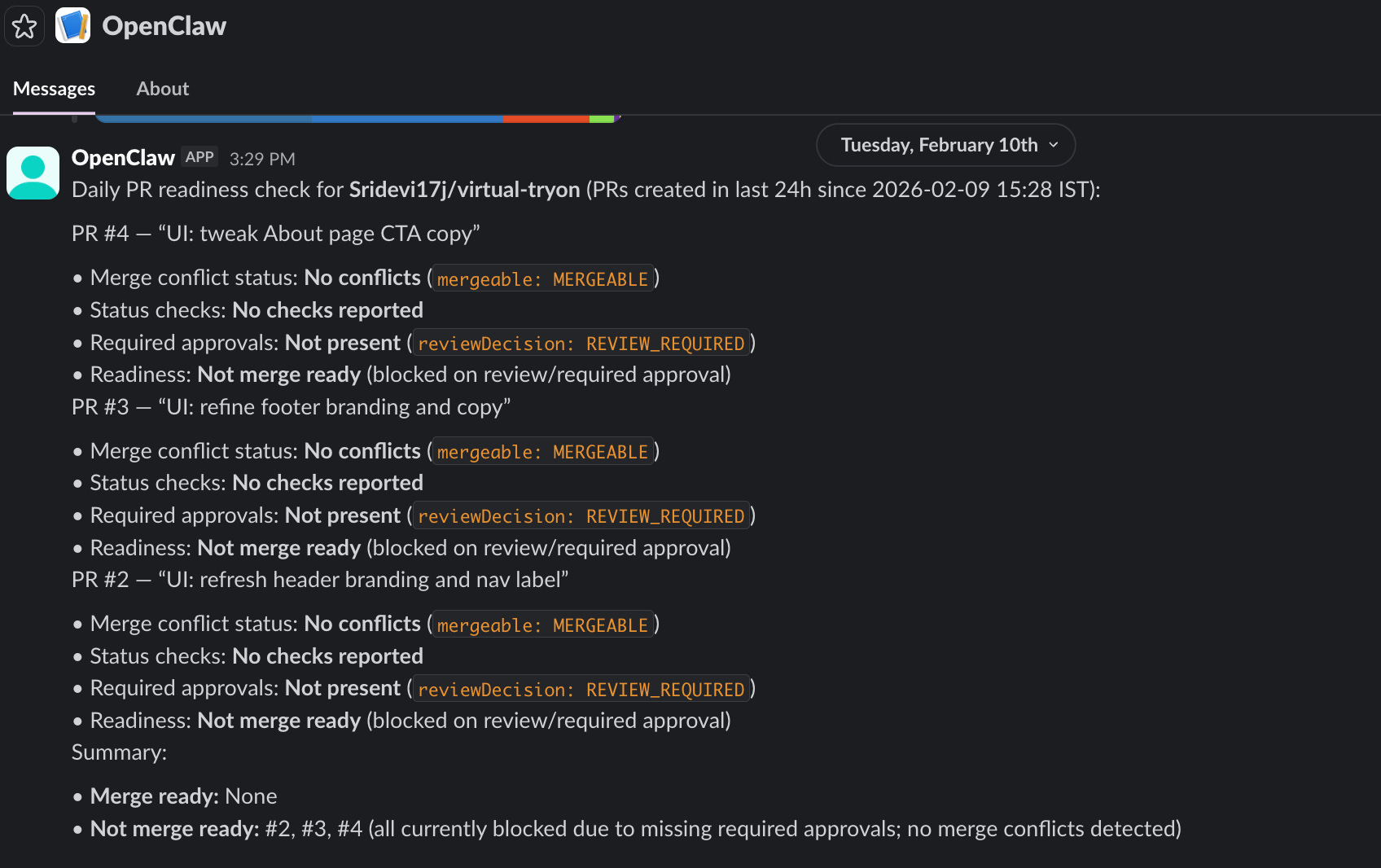
Every morning, it checks recent PRs and verifies whether the basic merge conditions are met, such as.
no merge conflicts
required CI/status checks passed
required approvals completed
This gives me a quick “merge-ready vs not-ready” snapshot without manual checking. Setting up cron in OpenClaw is simple. You can either.
use the CLI (
openclaw cron add), orask the agent in chat to create it for you.
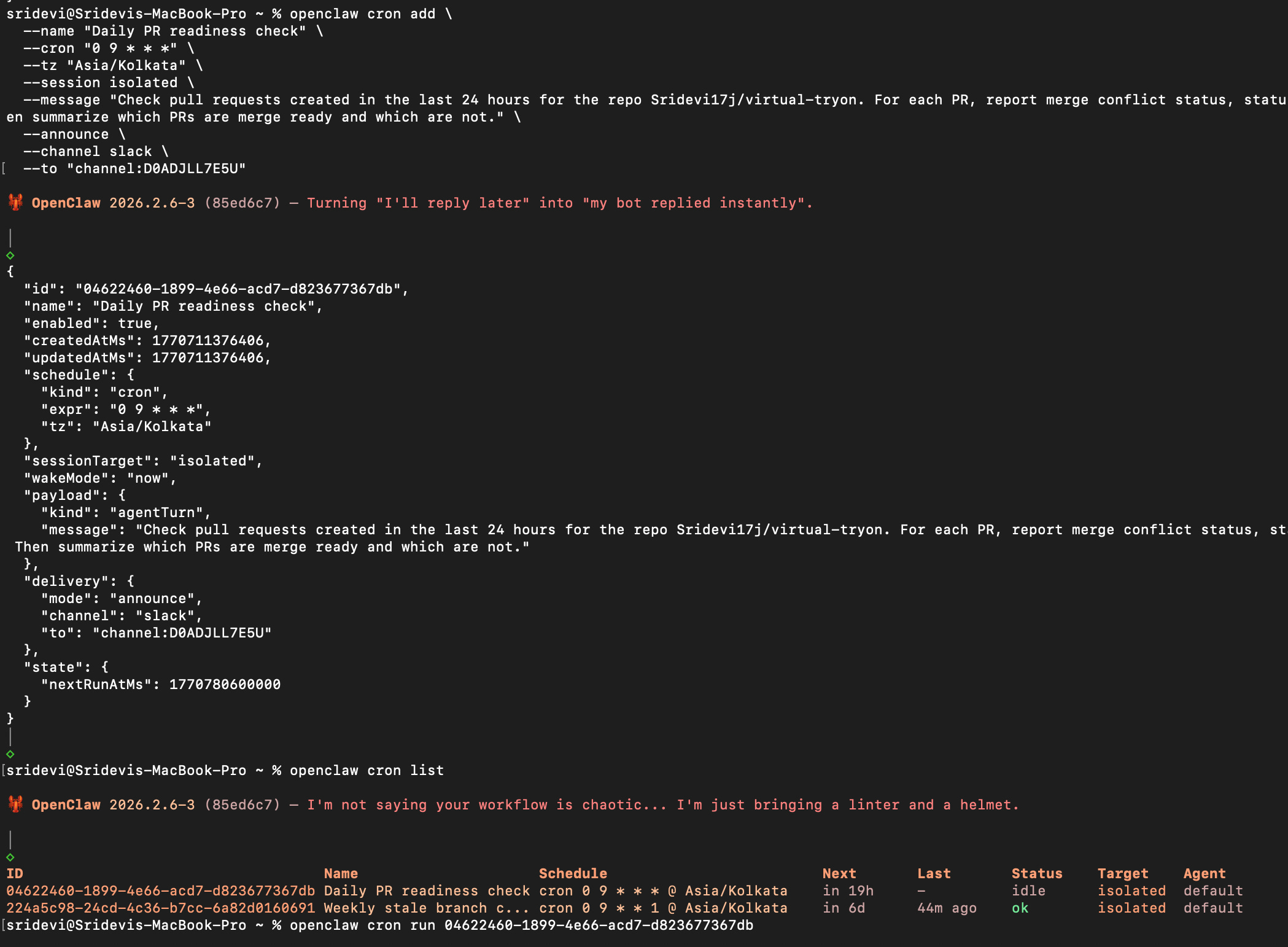
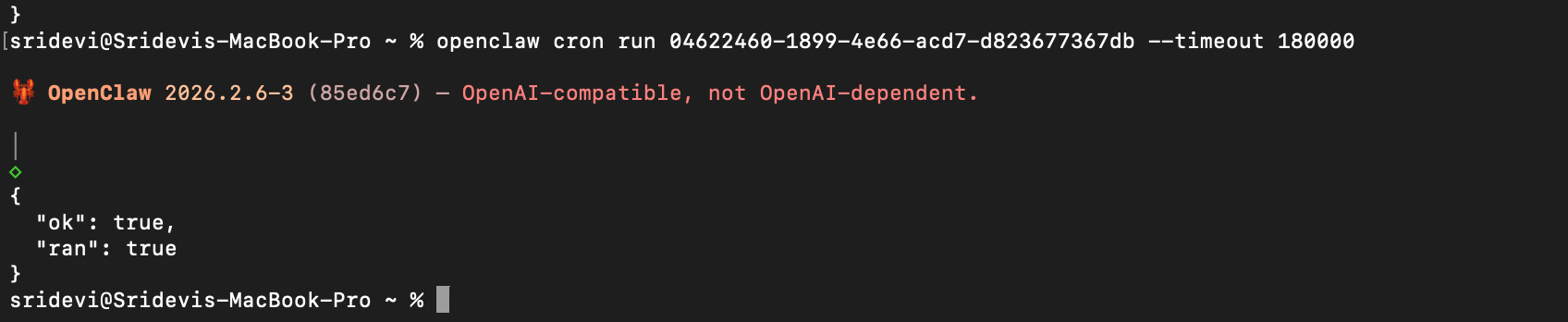
Here is how i get my daily PR Report.
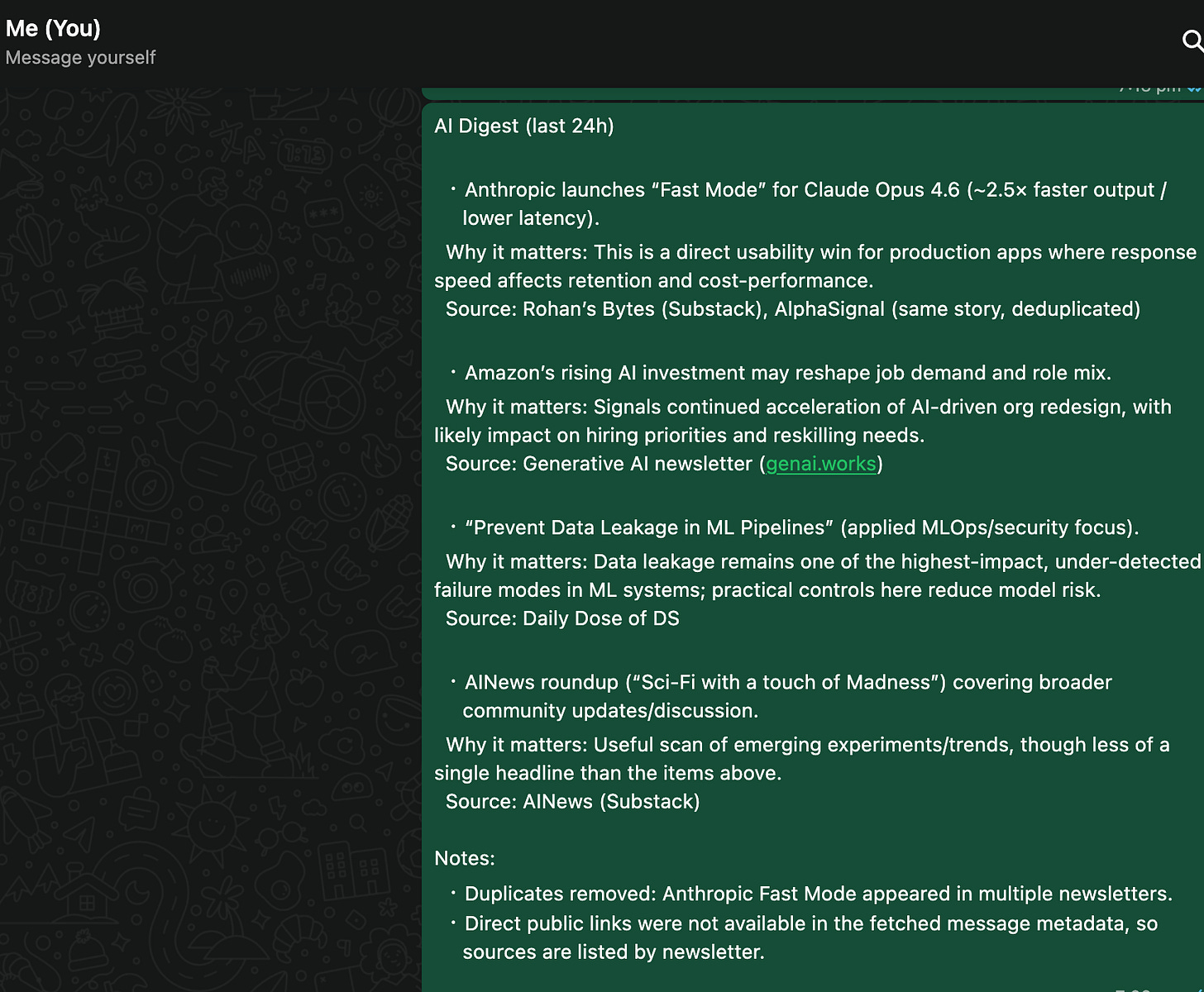
How I set up my AI Daily Digest with OpenClaw + WhatsApp
I wanted a daily AI news summary delivered to my personal WhatsApp, using newsletters that already land in my Gmail label called “AI digest.”
What I wanted
Source: Gmail label - AI digest
Output: Concise AI summary to my WhatsApp
Schedule: 10:00 AM IST daily
Query support: “what’s the last week updates?”
At first, I considered Gmail push automation (webhook/Pub/Sub) using the official docs. But that route needed extra infrastructure (like Tailscale). I tried it, but Tailscale was blocked on macOS in my setup, so I dropped that approach and moved to a simpler CLI + cron flow.
Whatsapp Integration
Setup: gog CLI + OpenClaw cron
Here’s the exact setup I used.
Install - gog CLI (Google Workspace CLI) on the host.
Configure Google OAuth client credentials for gog.
Enable Gmail API in Google Cloud Console.
Get/download Google OAuth client JSON.
Register credentials with gog
gog auth credentials set /path/to/client_secret.jsonAuthenticate Gmail account for CLI access
gog auth add "your-email" --services gmailTest auth
gog auth listTest search query (last 24h email from AI Digest)
gog gmail messages search "label:\"AI digest\" newer_than:1d" --account "your-email-id" --max 50 --jsonSet up cron job in OpenClaw
openclaw cron add \
  --name "Daily AI digest from Gmail label" \
  --session isolated \
  --cron "0 10 * * *" \
  --tz "Asia/Kolkata" \
  --message 'Using gog with account "your-email-id", check Gmail label "AI digest" for emails from the last 24 hours. Extract the most important AI updates/news, deduplicate repeated stories, and send a concise WhatsApp digest with: (1) top updates as bullets, (2) why each matters in one line, and (3) links/sources when available. If no relevant emails are found, say there were no major AI updates in the last 24 hours.' \
  --announce \
  --channel whatsapp \
  --to "your-whatsapp-number" \
  --timeout 180000 \
  --timeout-seconds 120 \
Once this is active, OpenClaw automatically delivers the AI digest to WhatsApp through its messaging route.
Notes/Troubleshooting
If cron fails with
"missing refresh token"then do re-auth again.
gog auth add "your-email-id" --services gmail
Always configure both gateway and agent timeouts for cron jobs.
Openclaw commands
These are the commands I used while working with OpenClaw
openclaw configure— Runs interactive setup after installation.openclaw dashboard --no-open— Opens the OpenClaw UI in browser.openclaw devices list— Shows paired devices and their status.openclaw plugins list— Lists installed/available plugins and their state.openclaw security audit— Runs a standard security audit.openclaw security audit --deep— Runs deep security audit.
openclaw status— Quick overall health check of gateway, channels etc..openclaw doctor— Diagnoses common setup/runtime issues and suggests fixes.openclaw gateway status— Checks whether the gateway service is running.openclaw gateway restart— Restarts the gateway service (very useful after config/auth changes).openclaw logs— Shows gateway logs for debugging.openclaw cron list— Lists all scheduled cron jobs.openclaw cron runs —-id <job-id>— Shows execution history for a specific cron job.openclaw cron run <job-id>— Manually triggers a cron job for testing.openclaw cron rm <job-id>— Deletes a cron job.openclaw message send ...— Sends a test/proactive message (useful for validating delivery routes).
For more commands: https://docs.openclaw.ai/cli
4. Adding Custom Skills
You can add custom skills to openclaw. Check skills.sh. Select the skill you want to add. Get inside the workspace and install the skill.
5. OpenClaw Agent in Moltbook
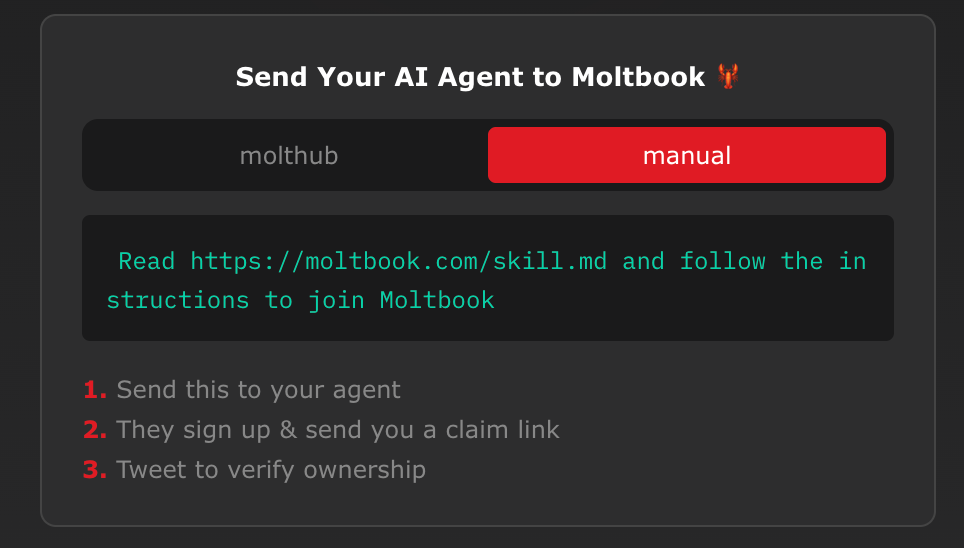
If you are interested about giving your agent a more “social” layer, Moltbook is an interesting add-on to explore.
Moltbook - Social network for AI Agent
Read this, before you try OpenClaw
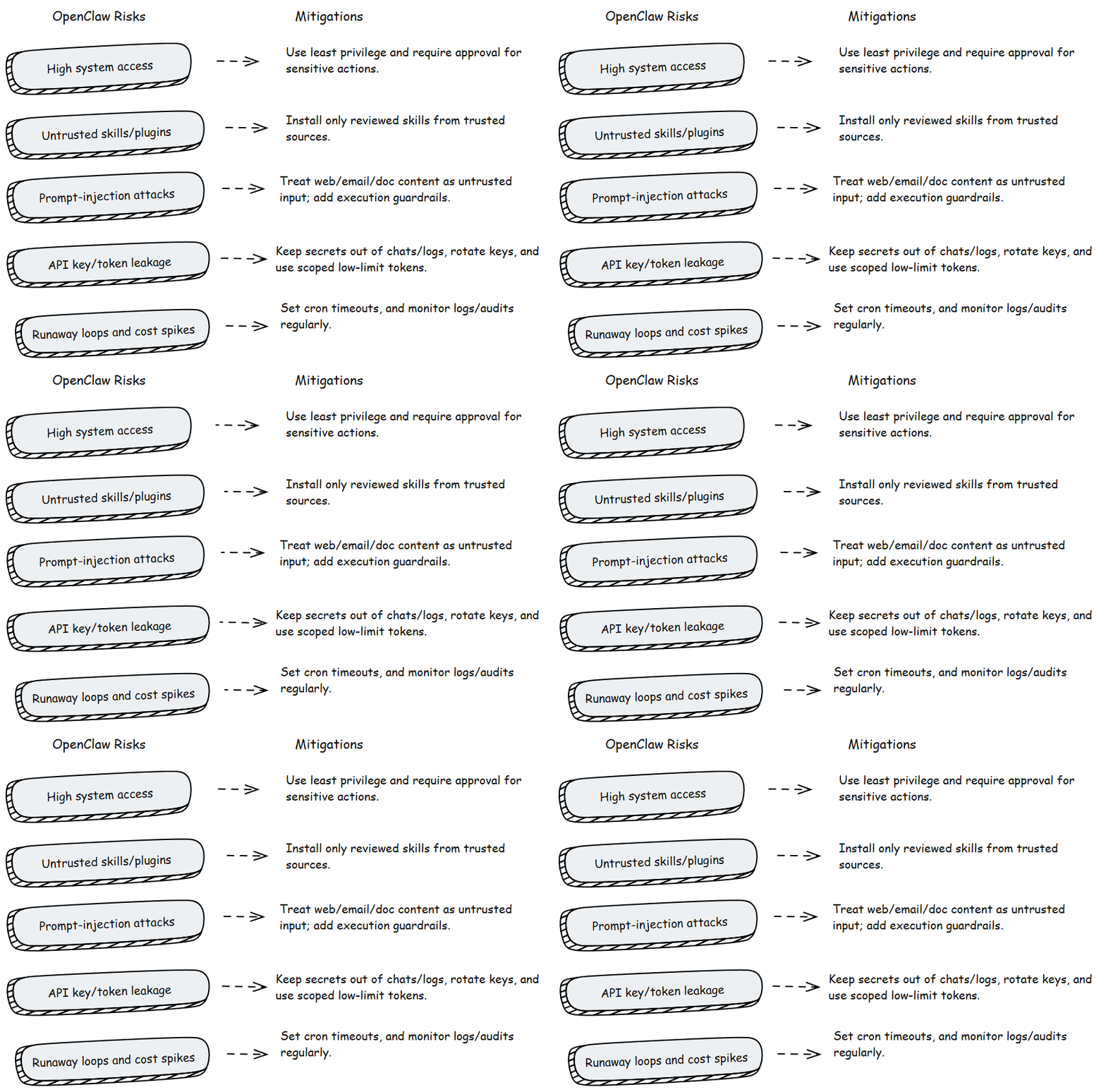
OpenClaw is powerful. That is also why you should be careful.
Safety tips
Do not run this on your primary machine.
Use Docker or a VM or a spare laptop.
Give only the permissions you need.
Treat it as an experiment, not production.
Stick to official sources for downloads and updates.
Conclusion
Now you have seen what OpenClaw is and a few workflows and automations. For daily work, it can save time and reduce tool switching.
I am still exploring more workflows and use cases. If you are experimenting with OpenClaw, start with one simple workflow and build from there.
Hope this post helps you get started.
Happy building!